First of all, we sincerely thank you for choosing our DUDU Carbox, it is your support and trust that gives us the opportunity to facilitate your travelling.
We are aware that the Carbox system still needs to be improved, but please rest assured that we have been working hard to optimise the system to ensure that you can feel the new progress every time you use it.
In order to let you quickly understand our Carbox system, this website is specially designed to provide function tutorials.
If you encounter bugs, or have good ideas and suggestions, we welcome you through the BBS and telegram direct feedback to us, we will seriously listen to your feedback, and continue to optimise the product, to bring you a better experience.
Finally, thanks again for your trust and support.
Telegram: https://t.me/duduauto
Forum: https://forum.dudu-auto.com
Car box usage conditions
- Wired CarPlay or Android Auto
- The car infotainment screen supports touch control
Default Connection Method for CarBox
- Default is wired CarPlay connection to the car system
- If you need to connect wired Android AUTO, please download:https://drive.google.com/file/d/1zdMb2H2LutCUtFwZje75L2aP8U51vrFM
CarBox Status Indicator Guide
Logo & Right-side Lights: Flashing patterns of the panel LOGO and right-side lights are for decorative purposes only; please disregard them. To customize the LOGO color, navigate to: Settings -> CarBox Settings -> LED Settings.
Important Notes:
Startup & Reboot: During power-on or a reboot caused by insufficient power supply, both the CarPlay (left) and Android Auto (right) indicators will light up simultaneously. (Note: During a reboot, all lights will extinguish momentarily before turning back on together).
Connection Modes: The CarBox supports wired CarPlay and Android Auto modes. The indicators reflect the current operating status:
Solid Light: Connected successfully to the head unit.
Rapid Flashing: Firmware update in progress.
Slow Flashing: Connection failed. Please contact after-sales support for assistance
CarBox Insufficient Power Supply Issue
This cable is standard. Upon arrival, first use the short cable for connection (another set of dual C and USB data cables are also included, choose according to your car model)
Symptoms of insufficient power supply:
- CarBox indicator light turns off and restarts when using the short cable
- After connecting to the car system, the CarBox frequently disconnects and restarts
Connect the CarBox short cable to the power cable's female port, then plug into the car system data port. Connect the other USB end to the cigarette lighter for power supply
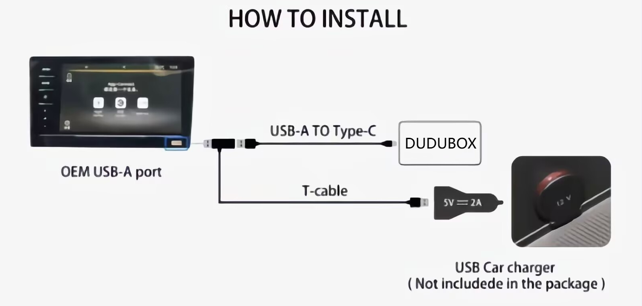
Power cable precautions:
- Strictly prohibited to connect to fast-charging cigarette lighter, as there is a probability of burning the device. It is recommended to use a non-fast charging 5V2A cigarette lighter
- If using other original car USB power supply is still insufficient, it's because the original car USB power supply is inadequate. It is recommended to use a cigarette lighter or fuse step-down module
Disconnection Issues Due to Bumps, etc.
Check if there is poor contact with the data cable or interface on the car system end and CarBox end. If unsure, try replacing the data cable
Can CarBox Automatically Switch to CarBox Interface When Connected
Follows Apple phone connection protocol. If the phone automatically switches, the CarBox generally also supports it
At the same time, CarBox also has a forced automatic switch option to choose as needed (some car models will not switch even if forced on, still following the phone standard)
Does CarBox Support High Refresh Rate and High Frame Rate
Depends on whether the car model's interconnection protocol supports it. Default is 30, some car models support 60. If experiencing lag, please restore default settings to 30
Path: Settings - CarBox Settings - Original Car Settings - Frame Rate Settings
CarBox GPS Signal Issues
Open Settings - About Device - Android General Settings - Location - Location Services, turn on both WLAN and Bluetooth scanning to help locate faster.
Satellite search speed and signal strength are dynamically affected by location, car environment, CarBox placement position and other environmental factors, such as tunnels, weather, metal film on windshield, placement in armrest box, etc.
It is recommended to prioritize using the original car GPS or change the CarBox placement position or use a signal enhancer or official Bluetooth GPS module
Lane-Level Navigation Issue
Lane-level is related to the APP.
Second generation single frequency does not support it, third generation is dual frequency
Calling Original Car GPS Issue
Not all car models are supported. Test after enabling to see if it's supported. Click the question mark for detailed instructions
Path: Settings - CarBox Settings - Original Car Settings
SIM Card No Signal or No Network
- The card tray may not be properly seated. It is recommended to remove, wipe the gold contacts, and try again
- Contact the carrier customer service to check if network service is activated or enable mobile network service on the CarBox
SIM Card Slow Network Issue
- CarBox placement position or environmental interference
- After ruling out environmental interference, you can try modifying APN settings. Refer to phone network modification. For other carriers, consult local customer service for parameter settings
Does CarBox Support Making Calls with SIM Card
Yes, open the phone dialer from the APP list to make calls
Does CarBox Support HDMI
- Second generation C2 CarBox does not support it
- Third generation C3 supports HDMI output and different display, but does not support reverse control. Can be paired with a wireless mouse to control the secondary screen
Supported Peripherals for CarBox
C2 and C3 CarBox only support Bluetooth peripherals, and currently do not support any wired peripheral connections
Does CarBox Support Custom Resolution
CarBox automatically adapts resolution when first connected to the car system after restart, following the car system protocol
Modification is not supported. The CarBox resolution is generally the same as connecting a single phone directly to the car system (less than or equal to the car system resolution)
Auto-start Issues for Music and Other APPs
Other APPs can be set internally in the software or set picture-in-picture or Desktop Settings - More Functions - Scheduled Task Startup (trigger condition is recommended to select desktop startup for more stability)
Music Media Information Mapping to Instrument Display
Some car models + some APPs Not all are supported.
No Sound from Car System After Connecting CarBox
Check if a Bluetooth speaker or headphones peripheral is connected. Sound is output through the peripheral causing no sound from the car speakers
Path: Settings - More Functions - Laboratory - Bluetooth Speaker
Difference Between Bluetooth Phone and Bluetooth Peripherals, Bluetooth Music No Sound Issue
- Bluetooth phone is used to connect to mobile phone Bluetooth, please do not connect incorrectly
- Bluetooth peripheral path: Settings - About - More Settings - Connected Devices or Settings - More Functions - Laboratory - Bluetooth Speaker
Already adapted peripherals can be directly connected in Settings - Device Connection interface. Other peripherals should be connected through the above peripheral path - After Bluetooth music is connected, you need to select the audio source in multimedia before this interface can play normally
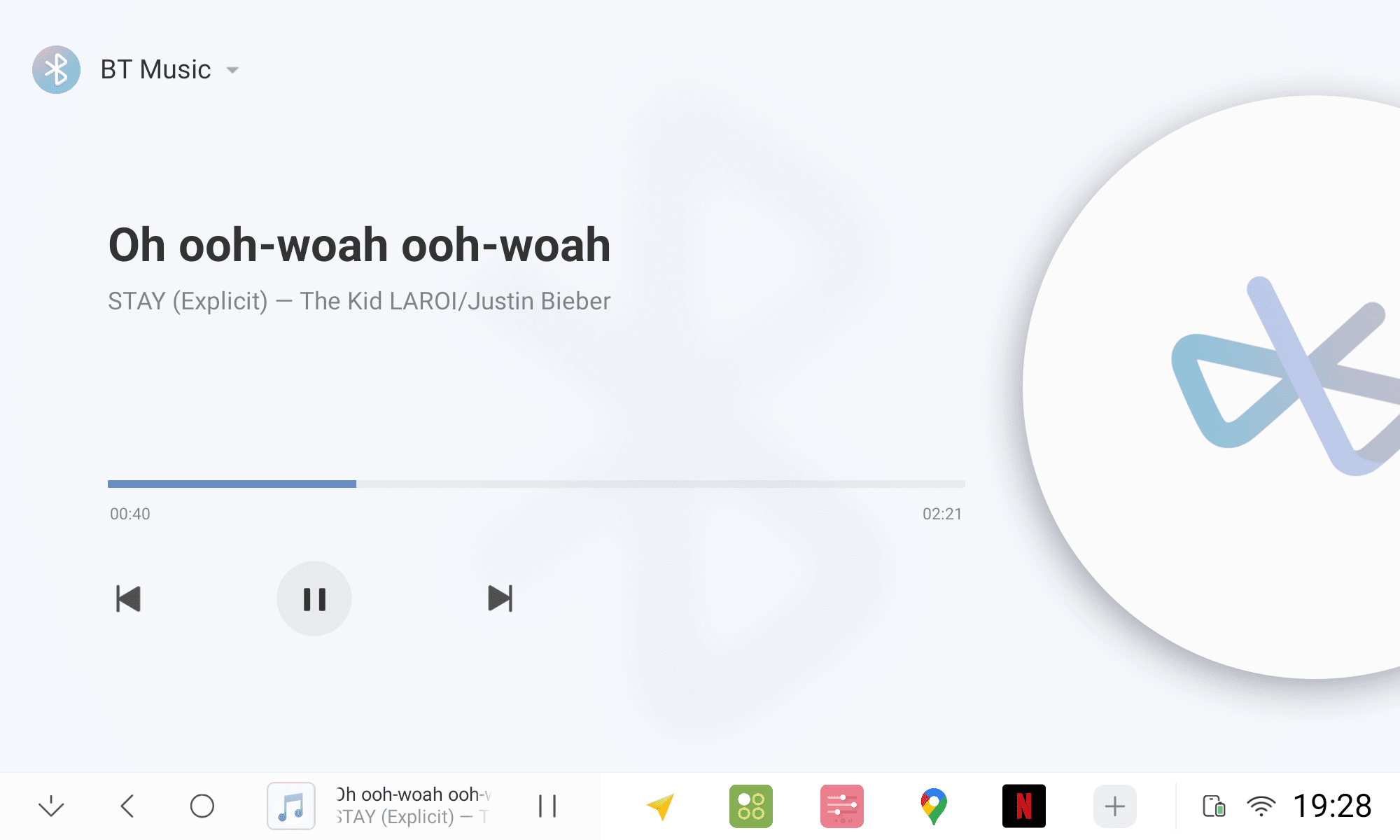
CarBox Sound Channel Method
CarBox navigation announcements alone use the navigation channel; once music starts playing, i.e. when mixing audio, it uses the unified media channel
You can set the announcement method in the navigation software settings
CarBox Memory Card Format and Capacity Size
32GB and below default is fat32 format. Greater than or equal to partition default has no fat32, can use exfat format
SD memory card supports up to 512GB (requires very good quality memory card, recommended to use 128GB or less)
Does CarBox Support Multi-touch
CarBox system supports it, but CarPlay protocol does not support it. Currently only supports single-finger touch
Which Wireless Connections Does CarBox Support
Supports wireless phone mirroring, Click help on the interface for details
Supports wireless CarPlay and wireless Android AUTO. The software is SpeedPlay. Click help on the interface for details
OTA Online Upgrade Issues
Enable test channel to receive updates
Path: Settings - More Functions - App Store - Receive Test Apps
Finish